
TLDR
Use a digital proof to check whether the content, layout, crop, image placement, and exported file are correct. Request a physical proof when your approval depends on the actual material, printed color, finish, opacity, scale, cutting, folding, or other production characteristics. For an expensive, color-sensitive, or unfamiliar job, the safest workflow uses both.
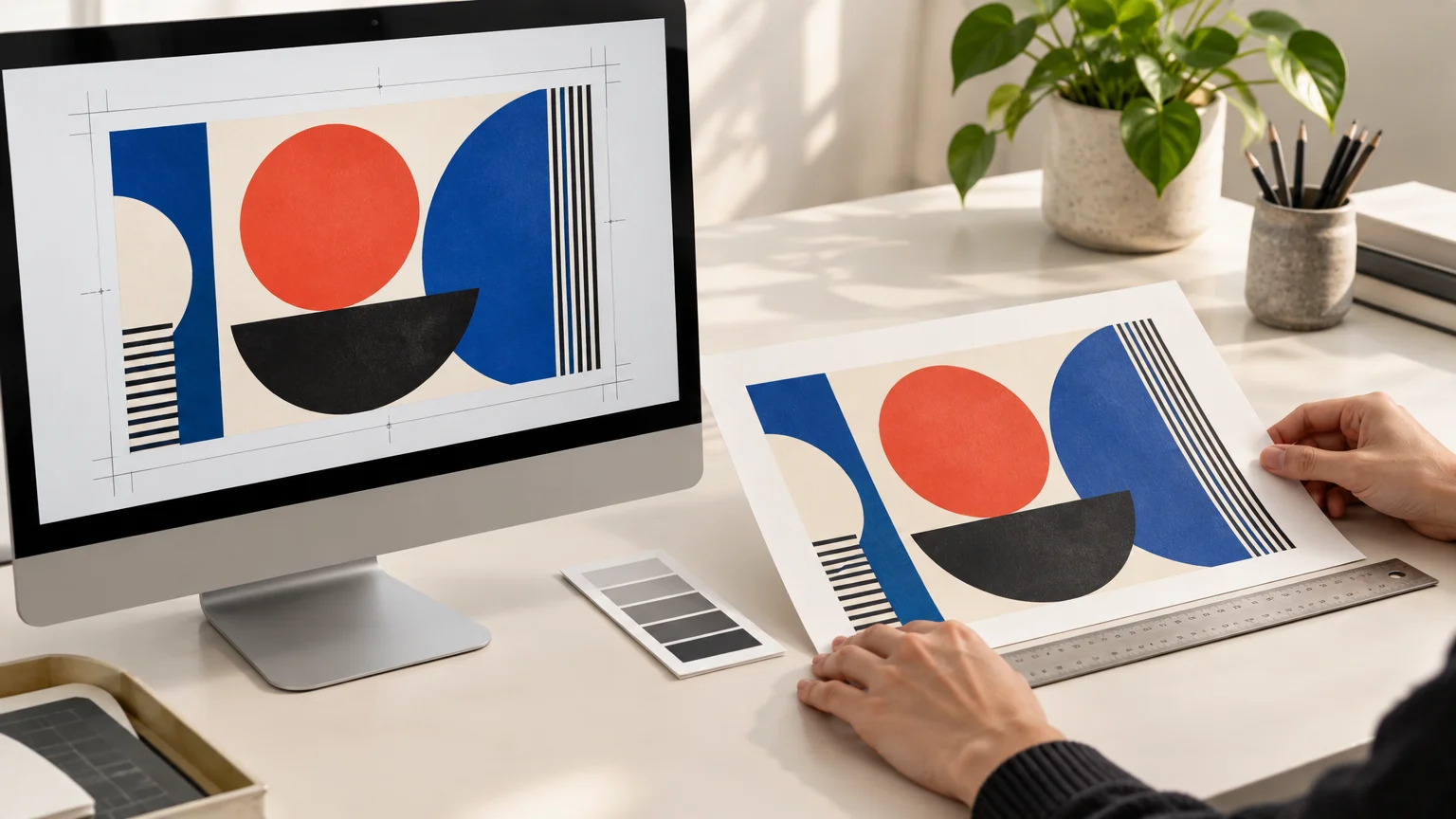
The practical answer to digital proof vs physical proof is that they verify different things. A proof viewed on a screen is primarily evidence about the file. A physical proof provides evidence about a printed object, although its value depends on how closely that proof represents the final press, ink, substrate, finishing, and production controls.
First, ask what the printer means by “digital proof”
Proofing terminology is not perfectly consistent. Many printers use “digital proof” to mean an emailed PDF or online preview. In technical print production, the term can also describe a physical validation print produced directly from digital data. Before approving anything, ask whether you are receiving an on-screen soft proof, a printed validation sample, a color-controlled contract proof, or a sample made using the intended production process.
Adobe describes soft proofing as an on-screen simulation of how an image may appear when reproduced by a particular output device. Hard proofing prints that simulation. Both depend on an appropriate color-managed setup, and neither definition alone establishes how closely a specific printer’s proof will match production.
ISO guidance also distinguishes validation printing from more tightly controlled proofing and emphasizes agreement about the intended printing condition. The ISO guidelines for using print production standards provide useful technical context, but your printer still needs to explain what its offered proof represents.
Digital proof vs physical proof at a glance
| Approval question | Digital or on-screen proof | Physical proof |
|---|---|---|
| Is the wording and pricing correct? | Usually excellent for careful review | Possible to check, but slower to revise |
| Are pages, images, and design elements in the right places? | Usually excellent | Also useful, especially at final size |
| Is the crop correct? | Good if the proof clearly shows trim boundaries | Better when physical trimming is represented |
| Does the source image contain enough detail? | Can be checked with effective PPI and preflight data | May reveal visible softness, but the proof method matters |
| Will the color match the screen? | Provides a simulation, not a universal guarantee | More informative when color-managed and tied to the intended printing condition |
| How does the material look and feel? | Cannot reproduce texture, thickness, opacity, or reflectivity | Can show these properties if the intended material is used |
| How will laminate, foil, varnish, or white ink behave? | Can indicate placement only | Can reveal the effect if that finishing process is actually included |
| Will trimming, folding, or die cutting align correctly? | Can show guides and intended geometry | Can expose physical alignment issues when finishing is represented |
| How quickly can a correction be reviewed? | Usually the faster option | Requires printing and delivery or in-person review |
| Is it the least expensive approval step? | Usually | Usually adds production or shipping cost |
What a digital proof is good at catching
An on-screen proof is the right place to catch file-level mistakes while changes are still relatively easy. Review the exact exported proof rather than relying only on the editable design file. Export settings, linked assets, font handling, transparency, and page assembly can change what reaches the printer.
- Spelling, prices, dates, contact details, and legal copy
- Wrong or outdated image versions
- Incorrect page order or missing pages
- Unexpected crop, rotation, or image placement
- Text or logos too close to the trim boundary
- Missing design elements or visible export artifacts
- Incorrect dimensions or orientation
- Unexpected spot-color or overprint behavior when checked with suitable production tools
A normal PDF review does not automatically verify every production condition. Acrobat Pro’s Output Preview and Preflight tools can inspect matters such as separations, spot and process colors, overprint behavior, image resolution, ink coverage, and PDF characteristics. A visual review alone may not reveal those technical issues.
For a complete layout, PDF is normally a more capable handoff container than a standalone raster image because it can preserve pages, vector elements, text, trim information, and other document structure. The choice still depends on the printer’s specifications; see how to choose between PNG and PDF for print before exporting the approval file.
What only a physical proof can show reliably
A monitor cannot reproduce paper texture, vinyl flexibility, metallic reflections, laminate glare, substrate opacity, adhesive construction, or the tactile effect of a finish. It also cannot demonstrate precisely how a cut edge, fold, binding method, or production tolerance will affect the finished piece.
A physical proof becomes especially useful when the printed object—not merely the file—is the decision. Consider requesting one for packaging prototypes, art prints, color-critical photography, unfamiliar papers, transparent or metallic labels, pieces using white ink, tightly registered die cuts, or products with multiple finishing operations.
For example, an on-screen proof for a transparent label may show where white ink is intended, but only a representative physical sample can show how the printed colors, white layer, clear material, adhesive, and container interact. When moving approved artwork into custom stickers and labels, ask whether the proof uses the intended stock, inks, cutting method, and finish.
Physical scale also changes judgment. A headline that looks balanced at 100 percent zoom may feel oversized on a small label. Fine reverse text may appear fragile once printed. A fold can interrupt a photograph in a way that was technically visible on screen but easy to overlook. A final-size sample makes these relationships harder to miss.
A physical proof is not automatically a color guarantee
“Physical” only describes the proof’s form. It does not tell you whether the sample was produced on the final press, with the final substrate, under a controlled simulation, or on an office printer used mainly to check layout. Ask what kind of proof you are buying and what approval standard applies.
| Proof type | What it generally helps evaluate | Important limitation |
|---|---|---|
| Basic printed mockup | Scale, pagination, broad layout, folds, and handling | May not represent final color, material, or production equipment |
| Validation print | A defined simulation produced from digital data | Must be tied to an agreed printing condition to be meaningful |
| Contract proof | A controlled color reference accepted for a specified production workflow | Its status, tolerances, and viewing conditions must be agreed with the printer |
| Production-process sample | Material, inks, finishing, cutting, and appearance from the intended or closely related process | May cost more and may still differ within stated production tolerances |
Do not infer “contract proof” from a sample’s professional appearance. Ask the printer whether the proof is intended only for content and layout approval or whether it serves as the agreed color target. Also ask what lighting and viewing conditions should be used during evaluation.
When a digital proof is usually enough
A digital proof is often sufficient when the job is low risk, the production method is familiar, and the printer has already produced the same specification successfully. It may be reasonable to approve digitally when all of the following are true:
- The quantity and potential reprint cost are modest
- Exact color matching is not critical
- The stock and finish are familiar
- There are no unusual inks, coatings, folds, or tight die-cut relationships
- The file has been checked at final dimensions
- Effective image resolution meets the printer’s requirement
- The printer’s proof clearly shows trim, crop, and relevant production boundaries
- You understand that a screen cannot reproduce the physical material
A repeat order can also be a good candidate for digital-only approval, provided the artwork and production specification genuinely remain unchanged. Confirm that “same as last time” includes the material, finish, process, size, and color target—not just the artwork filename.
When to request a physical proof
The case for a physical proof grows with the cost of being wrong. Request one when a reprint would be expensive, a launch date leaves no recovery time, the design relies on subtle color, or the material and finishing substantially influence the result.
- You are using a new printer, substrate, or production process
- Brand or product color is especially sensitive
- The design includes transparent, fluorescent, metallic, or white inks
- A laminate, varnish, foil, embossing, or other finish affects appearance
- Small text or detailed artwork sits near a cut, fold, seam, or perforation
- The object must fit packaging, a display, or another physical component
- The job has a high quantity or high reprint cost
- You need stakeholders to approve the actual scale and material
A physical proof is not a substitute for checking the digital file. A beautifully produced sample can still contain an unnoticed wrong price or old product photo. Approve content and production characteristics as separate checkpoints.
Check effective PPI before either proof
Proofing cannot restore detail that is absent from the source image. Pixel dimensions, physical print dimensions, and effective resolution are linked. If you change print size without resampling, the effective PPI changes, but no new source detail is created.
Calculate effective PPI by dividing the pixel dimension by the corresponding print dimension in inches. A 3,600 × 2,400-pixel image printed at 12 × 8 inches provides 300 PPI in both directions: 3,600 ÷ 12 = 300 and 2,400 ÷ 8 = 300. If the same file is enlarged to 24 × 16 inches, it provides 150 PPI. Changing only the resolution metadata to 300 PPI would not manufacture the missing detail.
Adobe identifies 300 PPI as a common target for high-quality, close-viewed prints, while noting that acceptable resolution varies with output size and viewing distance. Treat 300 PPI as a useful reference rather than a universal submission rule, and follow the printer’s stated requirement.
This calculation is particularly important for artwork repurposed from social platforms, presentations, or websites. If that is your starting point, use the workflow for turning a social-media graphic into a print-ready asset before requesting a proof.
A dependable proof-approval workflow
- Preserve an editable master containing the original high-resolution images, live text, vectors, and working layers.
- Create separate derivatives for web and print rather than forcing one compressed file to serve both destinations. A repeatable batch export workflow for web and print reduces version confusion.
- Confirm the final physical dimensions, including the printer’s required bleed and safe-area instructions.
- Calculate effective PPI at the placed size and inspect important images at a meaningful zoom level.
- Use the color mode, output profile, and file format requested by the printer. If no specification has been supplied, ask rather than guessing.
- Export the actual production file, then preflight it for dimensions, fonts, image resolution, separations, overprint, spot colors, and other relevant conditions.
- Review the digital proof for content and file correctness. Compare it with the approved copy and master design rather than relying on memory.
- Review a physical proof when material, finish, color target, physical construction, or production risk warrants it.
- Record the approved proof version, date, specifications, and approver. Archive the exact approved file instead of replacing it with a later file under the same name.
Questions to ask before approving a proof
- Does “digital proof” mean an on-screen PDF or a printed proof generated from digital data?
- Is this proof intended for content approval, layout approval, color approval, or all three?
- Is the proof shown or produced at final size?
- Which press, printing condition, material, inks, and finish does it represent?
- Does it include the actual laminate, white ink, varnish, foil, folding, or die cutting?
- Are trim, bleed, folds, seams, and safe areas clearly identified?
- What differences between the proof and production run should I expect?
- What file format, color setup, profile, dimensions, bleed, and effective resolution do you require?
- If color is contractually important, what reference, tolerance, and viewing condition will be used?
- What exactly am I accepting when I approve the proof?
Choose the proof according to the risk
The simplest decision rule is to use a digital proof to approve the file and a physical proof to evaluate the object. A digital review is fast and effective for text, layout, crop, versions, and export problems. A representative physical proof adds information about real size, material, finish, construction, and printed appearance.
For routine, low-risk work, a preflighted production file and careful on-screen approval may be enough. For color-sensitive, materially complex, unfamiliar, or expensive work, request a physical proof and establish what it represents before approving it. The extra proof is worthwhile when its cost is lower than the likely cost of discovering the problem after the full run is complete.
References
- Proofing colors in Photoshop | Photoshop
- Guidelines for using print production standards v2 Jan 2024
- ISO 12647-8:2021 – Graphic technology — Process control for the production of half-tone colour separations, proof and production prints — Part 8: Validation print processes working directly from digital data
- Previewing output (Adobe Acrobat Pro) | Adobe Acrobat
- Analyzing documents with the Preflight tool (Adobe Acrobat Pro) | Adobe Acrobat
- Understand printed image resolution in Photoshop | Photoshop
- Image size, resolution, and resampling in Photoshop | Photoshop
- Print resolution for images in Photoshop | Photoshop