
TLDR
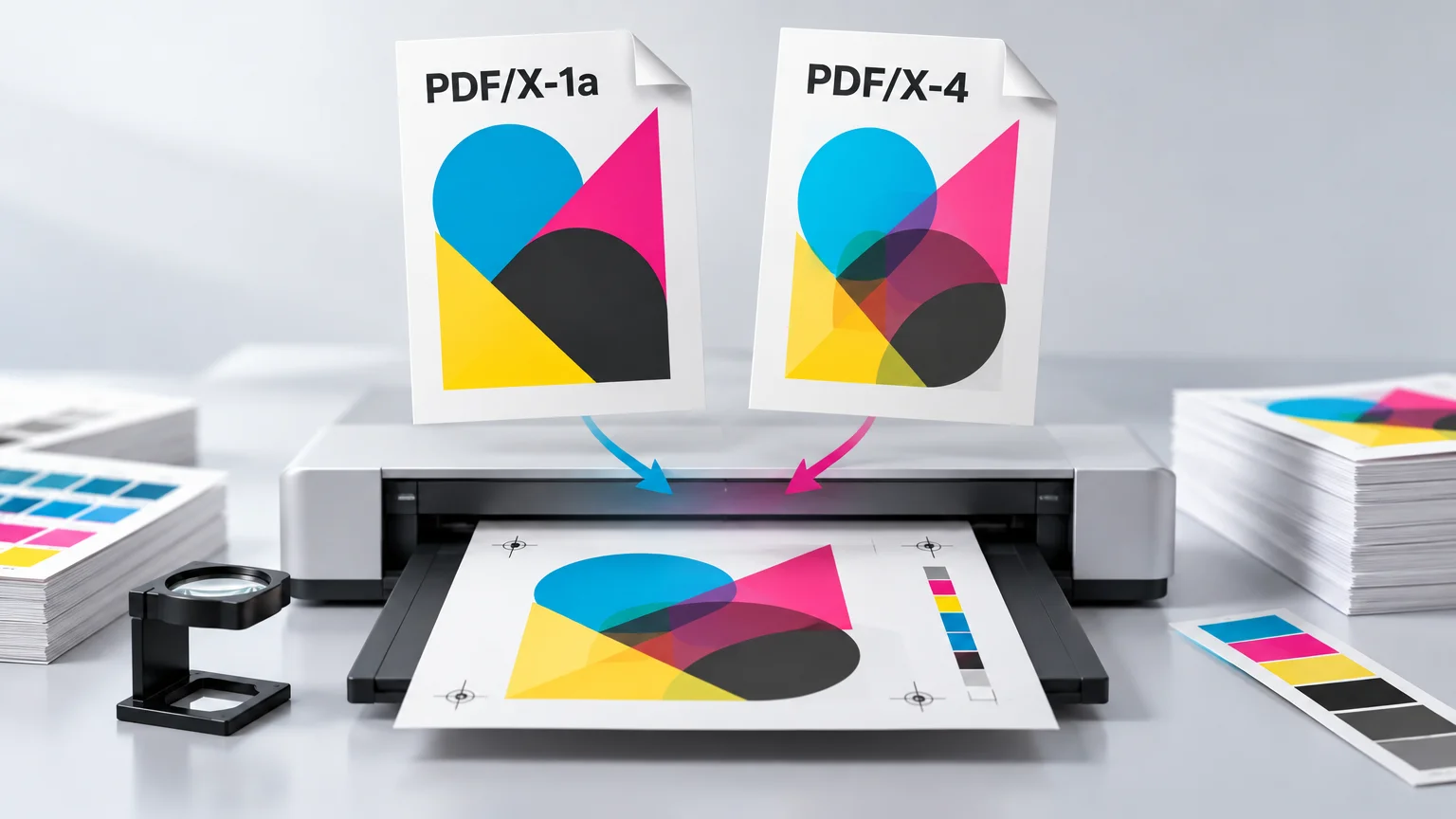
Choose PDF/X-4 for most modern print workflows unless your printer specifically requests PDF/X-1a. PDF/X-4 retains live transparency, supports color-managed RGB and CMYK content, and includes an output-intent profile. PDF/X-1a converts the handoff into a more restrictive CMYK, grayscale, and spot-color workflow with flattened transparency. Neither standard fixes low-resolution images, missing bleed, an incorrect page size, or other production mistakes.
The practical difference
PDF/X-1a and PDF/X-4 are both members of the PDF/X family of ISO standards for print-production file exchange. They impose defined constraints that make a PDF more predictable, but they represent different approaches to preparing color and transparency. The PDF Association’s technical overview of PDF/X provides a useful account of those constraints.
PDF/X-1a expects the exporter to resolve more production decisions before delivery. Its permitted content is limited to CMYK, grayscale, and spot colors, while transparency is flattened. PDF/X-4 can retain live transparency and color-managed RGB, CMYK, grayscale, and spot-color content. A compliant PDF/X-4 file also identifies the intended printing condition through an output-intent ICC profile.
| Decision point | PDF/X-1a | PDF/X-4 |
|---|---|---|
| Color content | CMYK, grayscale, and spot colors | Color-managed RGB, CMYK, grayscale, and spot colors |
| Transparency | Flattened during export | Preserved as live transparency |
| Typical workflow | Restrictive or legacy production workflow | Modern color-managed production workflow |
| Main advantage | Compatibility where this exact standard is required | Defers transparency and color processing to a capable print workflow |
| Main caution | Flattening can create complex raster and vector regions | The receiving system must process PDF/X-4 correctly |
| Best default | Only when requested or required | Usually the better starting point for a current workflow |
When PDF/X-4 is the better choice
Start with PDF/X-4 when the printer accepts it and your layout contains transparent PNGs, soft shadows, glows, opacity changes, blends, or overlapping effects. Keeping transparency live avoids committing those interactions to flattened vector and raster regions at export. Adobe identifies PDF/X-4:2008 as an optimal format for reliable print-publishing workflows. Adobe’s Illustrator PDF guidance also documents the contrasting PDF/X-1a workflow and its high-resolution transparency flattening.
PDF/X-4 is also useful when color conversion belongs later in a managed production workflow. An RGB photograph can remain tagged with its profile rather than being converted blindly to a generic CMYK space. That does not guarantee perfect color: the output intent, source profiles, printer settings, substrate, and press condition still have to agree.
This direction is reflected in the Ghent Workgroup specifications resources, where newer specifications are based on PDF/X-4 rather than the group’s older PDF/X-1a-based settings.
When PDF/X-1a is still the right answer
Use PDF/X-1a when the printer, print portal, publication, or established production specification explicitly requires it. A technically newer format is not helpful if the receiving workflow rejects it or expects all transparency and RGB conversion to have been resolved upstream.
The important step is to inspect the flattened result. Transparency flattening can divide artwork into vector and rasterized regions, particularly where opacity effects cross type, images, spot colors, overprints, or intricate vector shapes. That does not make PDF/X-1a defective; it means the conversion deserves a careful proof at high zoom.
Check small text, thin rules, gradients, drop-shadow boundaries, spot-color objects, and areas where transparent artwork overlaps other elements. If the printer supplies a preset or job-options file, use it instead of constructing a generic PDF/X-1a export from memory. Adobe advises confirming resolution and related output requirements with the commercial printer.
PDF/X does not fix image resolution
Switching from PDF/X-1a to PDF/X-4 does not restore detail missing from a small raster image. Adobe’s listed presets use the same 300 ppi downsampling threshold for color and grayscale images and 1200 ppi for monochrome images. Actual sharpness still depends on the image’s pixel dimensions and its final placed size.
For example, a 1,800-pixel-wide image placed at 6 inches has an effective resolution of 300 ppi: 1,800 ÷ 6 = 300. Enlarge it to 12 inches and the result is 150 ppi. Changing its resolution metadata or selecting another PDF/X flavor does not create additional pixels.
Check effective PPI in the layout application before export, especially if an image has been scaled substantially. For broader handoff guidance, see how to send high-resolution artwork to a printer without losing quality. If you are still deciding whether a complete layout should be a PDF or a single raster image, the PNG versus PDF printing guide addresses that earlier decision.
What neither standard decides for you
PDF/X does not establish a universal bleed amount, finished page size, minimum image resolution, rich-black recipe, ink limit, or spot-color policy. Those requirements depend on the printer and product. It is therefore possible to create a standards-compliant PDF/X file that is still wrong for the job.
If the finished artwork will become a sticker or label, confirm the required bleed, cut path, color setup, and accepted PDF/X version with the producer. CustomStickers provides custom sticker, label, material, and artwork-preparation options; see details before adapting the export to that destination.
A dependable export and preflight checklist
- Ask the printer whether it requires PDF/X-1a, accepts PDF/X-4, or supplies its own PDF preset.
- Set the correct finished page dimensions and add the printer’s requested bleed.
- Check effective PPI at the final placed size rather than relying on an image’s resolution label.
- Confirm whether RGB conversion should happen during export or in the printer’s color-managed workflow.
- Review transparent objects, overprints, spot colors, small type, thin rules, and ink-heavy areas.
- Select the intended PDF preset and inspect its settings. Adobe notes that preset settings persist, so a previous export can affect the next one.
- Export the PDF, then inspect the exported file rather than assuming the source document and PDF are identical.
- Use Acrobat Pro Preflight, when available, to validate PDF/X conformance and inspect the output intent, fonts, colors, transparency, image resolution, compatibility, and other relevant criteria. Match the chosen profile to the printer’s requirement.
The final choice
PDF/X-4 is the stronger general default for a current workflow because it preserves live transparency and supports managed RGB content. PDF/X-1a remains the correct choice when the receiving specification demands flattened transparency and CMYK, grayscale, or spot-color content.
The printer’s requirement wins. After choosing the requested standard, verify the properties that PDF/X cannot decide for you: dimensions, bleed, effective resolution, color intent, fonts, spot colors, cut paths, and the exported PDF itself.
References
- Technical side and requirements of PDF/X – PDF Association
- How to create Adobe PDF files in Illustrator | Illustrator
- PDF/X-, PDF/A-, and PDF/E-compliant files (Adobe Acrobat Pro) | Adobe Acrobat
- Adobe PDF presets in Illustrator | Illustrator
- How to print and save transparent artwork in Illustrator | Illustrator
- Specifications – test – Ghent Workgroup
- Export PDFs for printing in InDesign | InDesign
- Analyzing documents with the Preflight tool (Adobe Acrobat Pro) | Adobe Acrobat