
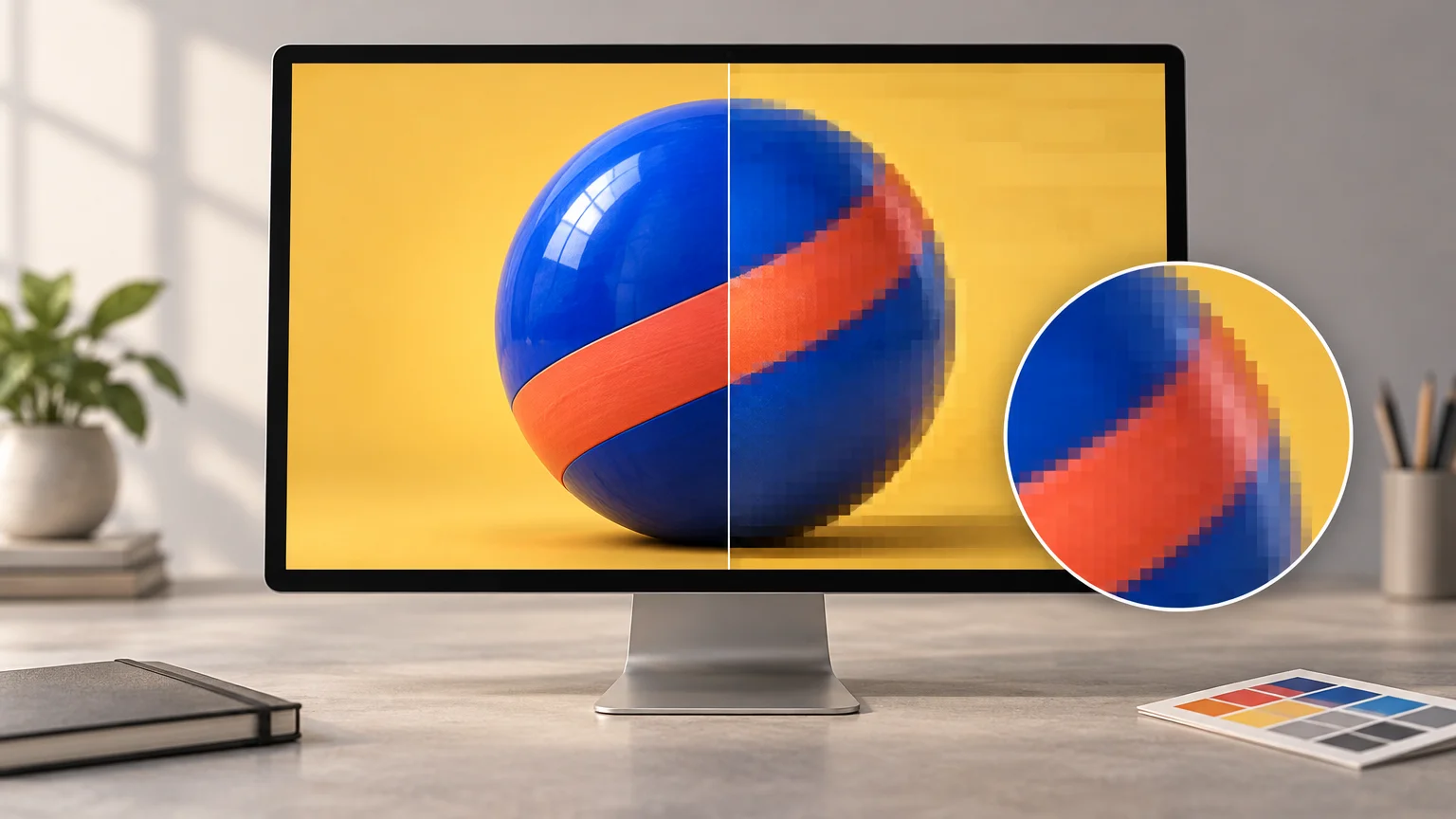
TLDR
Compression artifacts are visible defects created when lossy encoding discards too much image information. They may appear as square blocks, muddy texture, halos around edges, blotchy gradients, or fuzzy color boundaries. The most reliable fix is to return to the earliest, least-compressed source and export a fresh derivative for the final use. Saving an already damaged JPEG at a higher quality can prevent additional damage, but it cannot restore detail that was previously discarded.
This guide offers image compression artifacts explained as a practical diagnosis rather than an abstract technical problem. Start by identifying the visible symptom, confirm that it is not ordinary pixelation or aggressive sharpening, and then trace the file back through its editing and export history.
What compression artifacts look like
Artifacts become easiest to see at 100% zoom, where one image pixel is represented by one screen pixel. Inspect smooth skies, shadows, hair, fabric, foliage, small labels, thin lines, and high-contrast edges. These areas expose compression problems because they contain either subtle tonal changes or detail that an encoder must simplify aggressively to reduce file size.
| Visible symptom | Likely explanation | Practical next step |
|---|---|---|
| Square or tiled patches | Block boundaries have become visible after strong lossy compression, especially in smooth or low-detail areas. | Return to a cleaner source and export at a less aggressive setting. |
| Muddy hair, grass, fabric, or product texture | Fine detail has been simplified or discarded, causing nearby features to merge. | Avoid sharpening the damaged derivative; locate the master or an earlier export. |
| Bright or dark ripples beside a hard edge | Ringing has formed around a strong tonal transition, sometimes resembling an oversharpening halo. | Compare with the source at 100% and use a cleaner export with gentler sharpening. |
| Speckles or crawling-looking noise around text and edges | Local compression errors are clustering around sharp transitions, sometimes called mosquito noise. | Use a lossless format for text-heavy artwork when the destination permits it. |
| Stepped bands in a sky or gradient | Tonal transitions have been reduced into visible steps. Compression may contribute, but editing, bit depth, or the display can also be involved. | Check the master gradient before export and avoid repeated conversions. |
| Fuzzy or bleeding color around small text | Color information has been simplified more heavily than the edge can tolerate. | Enlarge the source artwork, increase export quality, or choose a lossless output where appropriate. |
| Large, obvious square pixels | The image may simply be undersized and enlarged rather than compression-damaged. | Check pixel dimensions and intended display or print size before changing compression settings. |
Image compression artifacts explained in plain English
Lossless compression reduces storage without intentionally throwing away image information. Lossy compression achieves smaller files by simplifying information judged less important to the image’s appearance. Adobe describes JPEG as lossy, while ZIP and LZW are lossless options in applicable Photoshop workflows.
JPEG’s familiar process is based on a discrete cosine transform and commonly operates on 8×8 blocks. The encoder represents the visual information in each block as a set of components, then quantizes those values—that is, stores them with reduced precision. When compression is mild, the changes may be difficult to notice. When it becomes aggressive, adjacent blocks stop blending naturally, fine texture disappears, and strong edges develop ripples. The JPEG Committee’s overview of JPEG 1 provides the format-level background for this DCT-based, lossy system.
This also explains why there is no universal “safe” JPEG quality number. Each application can present its quality controls differently. Photoshop’s Save As dialog, for example, uses a 0–12 JPEG quality scale and trades retained detail against file size. That number should not be assumed to match a percentage or quality value in another tool. JPEG also does not preserve layers, so the exported file should normally be treated as a delivery copy rather than the only editable master.
JPEG is not the only format with lossy compression. WebP supports both lossy and lossless modes; Google describes its lossy mode as using predictive coding, quantization, and adaptive allocation across image areas. Format names alone therefore do not tell you whether a particular file is lossless. You also need to know which encoding mode and settings were used.
Compression damage versus other image problems
Compression artifacts and insufficient resolution can appear together, but they are different problems. Resolution concerns how many pixels are available for the required output size. Compression concerns how faithfully those pixels preserve the original visual information.
Pixelation usually produces enlarged square pixels or stair-stepped edges after a small image is scaled up. Compression blocking creates patches tied to the encoding process, even when the image has enough nominal pixels. A 4000-pixel-wide file can still contain severe artifacts if it came from a heavily compressed copy. Conversely, a clean 600-pixel image may contain very few compression artifacts while still being too small for a large print.
Sharpening halos are another common look-alike. Sharpening deliberately increases local contrast around edges; too much produces bright and dark outlines. Compression ringing may create similar outlines because the encoded representation cannot reproduce a hard transition cleanly. Turn off editable sharpening layers, if available, and compare the master with the exported copy. If the halos exist only in the export, compression is the stronger suspect.
Banding needs similarly careful diagnosis. Compression can worsen a gradient, but limited tonal precision, heavy color edits, or the viewing display may also produce visible steps. Check the least-processed source on more than one suitable display before blaming the final format alone.
Why repeated JPEG saves can make the problem worse
Opening a JPEG does not itself damage it. The risk comes when the decoded image is edited or re-exported through another lossy JPEG cycle. Because each lossy encoding may simplify the current pixels again, multiple generations can accumulate defects. Raising the quality for the final generation may reduce further loss, but it does not reconstruct information removed in earlier generations.
This is why a clean master-and-derivative structure matters. Preserve the original capture or editable working file, then generate purpose-specific copies. Do not download a web copy, edit it, save it as JPEG, place it into another layout, and export it again unless no better source exists.
A safer workflow from master file to final export
- Preserve the earliest available source. Keep the original capture, scan, illustration, or editable layered document untouched.
- Make corrections in an editable or least-compressed working file. Avoid using a small web JPEG as the working master.
- Finish crop, retouching, color work, resizing, and sharpening for the intended output rather than applying the same treatment to every destination.
- Create separate web and print or production derivatives. A reliable batch export workflow for web and print can keep those versions clearly separated.
- Inspect the actual export at 100% zoom. Check gradients, shadow transitions, small text, logos, hair, texture, and hard-edged product details.
- Compare the export against the working master. Look specifically for new blocks, smearing, halos, banding, and color fuzziness.
- Keep the master after delivery. If requirements change, make a new derivative from that source instead of converting the delivery file again.
Choosing an output format
Photographs intended for the web often tolerate an appropriately configured lossy JPEG or lossy WebP export because natural texture can conceal modest simplification. The right setting depends on the image, dimensions, and delivery target, so judge the exported result rather than trusting a universal quality number.
Logos, screenshots, diagrams, small typography, and flat-color graphics are less forgiving. Their precise edges and repeated solid tones can make lossy defects obvious. A lossless PNG or lossless WebP may be more suitable when the destination accepts it. The broader tradeoffs are covered in this comparison of JPEG, PNG, and WebP for online images.
For print or production handoff, follow the chosen provider’s current specifications. Do not assume that a particular format, color profile, resolution, or quality setting is accepted universally. If the deliverable is a complete layout rather than a standalone photograph, the distinction between PNG and PDF for print handoff may also affect how text, page size, and layout elements are preserved.
Why increasing PPI does not remove artifacts
Changing a file’s PPI metadata or resampling it to a larger pixel count does not recover texture lost during compression. Effective PPI is useful for deciding how large an image can be printed, but it measures pixel density—not the quality of the information inside those pixels.
Calculate effective PPI by dividing the image dimension in pixels by the intended printed dimension in inches. A 2400 × 1600-pixel image placed at 8 × 5.33 inches has approximately 300 pixels per inch in each direction: 2400 ÷ 8 = 300, and 1600 ÷ 5.33 is approximately 300. The calculation says nothing about whether the 2400 × 1600 pixels contain clean detail, blur, noise, or JPEG blocks.
Always evaluate both dimensions and visible integrity. If the pixels are badly compressed, making the print smaller can make the defects less conspicuous, but it does not remove them. If you are diagnosing an image that originated as a screen capture, this guide to why screenshots often print worse than expected develops the effective-PPI calculation further.
Can compression artifacts be repaired?
They can sometimes be reduced visually, but complete recovery is not guaranteed. Artifact-reduction filters may soften block boundaries, noise, or halos. Adobe’s guidance warns that stronger JPEG artifact-reduction settings can also soften fine details.
That tradeoff matters. Smoothing a blocky cheek, fabric texture, or shadow may produce a cleaner-looking surface while erasing real detail that survived the original export. Added sharpening can then exaggerate the remaining boundaries. Work on a duplicate, inspect the result at the final output size, and compare it with the untreated file.
If no cleaner source exists, use the least damaged copy available. Apply restrained artifact reduction, rebuild critical text or logos as clean elements where permitted, and avoid another aggressive lossy export. Treat enhancement as appearance management rather than restoration of the original data.
Before you export, upload, or print
- Keep the original or editable master separate from delivery files.
- Confirm the final pixel dimensions and physical output size.
- Choose lossy or lossless output according to the image content and destination.
- Do not translate quality numbers directly between different applications.
- Inspect the exported file at 100% zoom, not only fitted to the screen.
- Check smooth gradients, shadows, hard edges, fine texture, and small colored text.
- Compare the export with the master before sending it.
- Avoid using a previously compressed web derivative as a print source.
- Follow the printer or platform’s stated requirements instead of relying on a universal preset.
- Archive the master so future sizes and formats can be exported from a clean source.
The practical takeaway
When an image looks blocky, smeared, or ringed, first determine whether the problem is compression, inadequate dimensions, sharpening, or a combination of them. Then return to the earliest and least-compressed source you can find. Make the required edits there, produce a single destination-specific export, and inspect the actual result before delivery. Better workflow discipline usually protects more detail than trying to repair a damaged file at the end.